Adding additional leaders to a school
Once you have signed up with School Surveys, you can invite other leaders of your school to set up surveys and automatically receive the benchmarked reports.
To add more school leaders, follow the steps below.
- First, log in to your School Surveys account through the portal. Navigate to the left bar and see which leaders have already been invited to use your account.
- Using the “Invite leader” button, add email addresses for those you wish to join and then send them an invitation. They simply follow the instructions in the email. The email will be sent from noreply@schoolsurveys.com.
- You can also decide on their level of access and the notifications they receive.
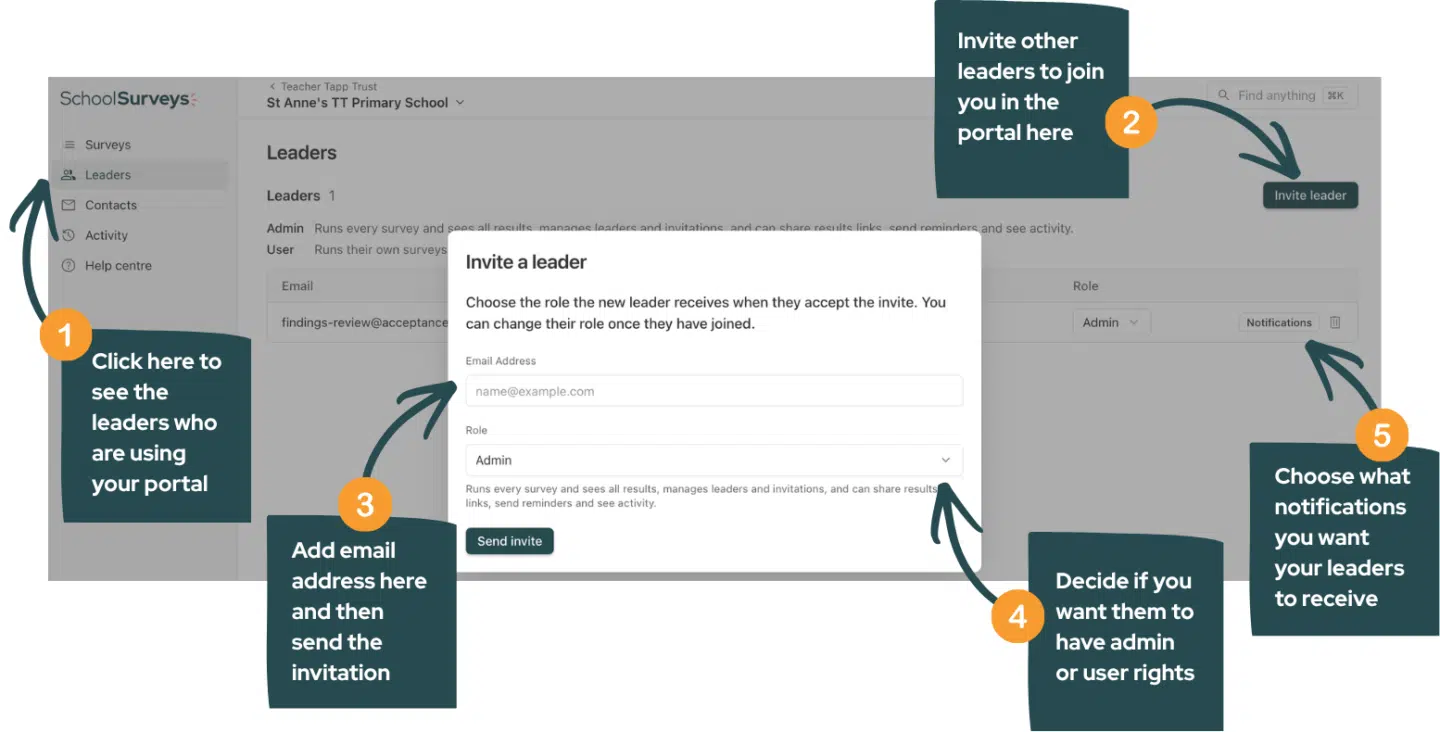
If you need to delete a leader from the portal, please click the bin icon next to the email address you would like to remove. Access for this user will be revoked immediately and they will no longer be able to access the portal or receive the benchmarked survey reports.
Click here for more information about logging in for the first time.
If the email is not received, please ask the staff member to check their spam mailbox. You can also resend an invitation by deleting their email address and re-entering it. If they still don’t receive the email, please check with your school or trust’s IT department as occasionally, internal filters may block the invitation.
If you still need help, please get in touch at help@schoolsurveys.com, call us on 0330 043 4469 or book a call for a time that suits you, and our team will be more than happy to help.