Adding additional leaders to a trust
Once you have signed up with School Surveys, you can allow other members of your trust to set up surveys and receive the results. You can also set up the leaders for your schools. You can decide what level of access leaders have and what notifications they receive.
Adding more leaders to the trust
Log in to the portal, navigate to the left bar and choose Leaders. Review who is already using and invite anyone else you would like to join.
Decide whether they have admin or user rights and once they have accepted their invitation you can adjust their notification settings.
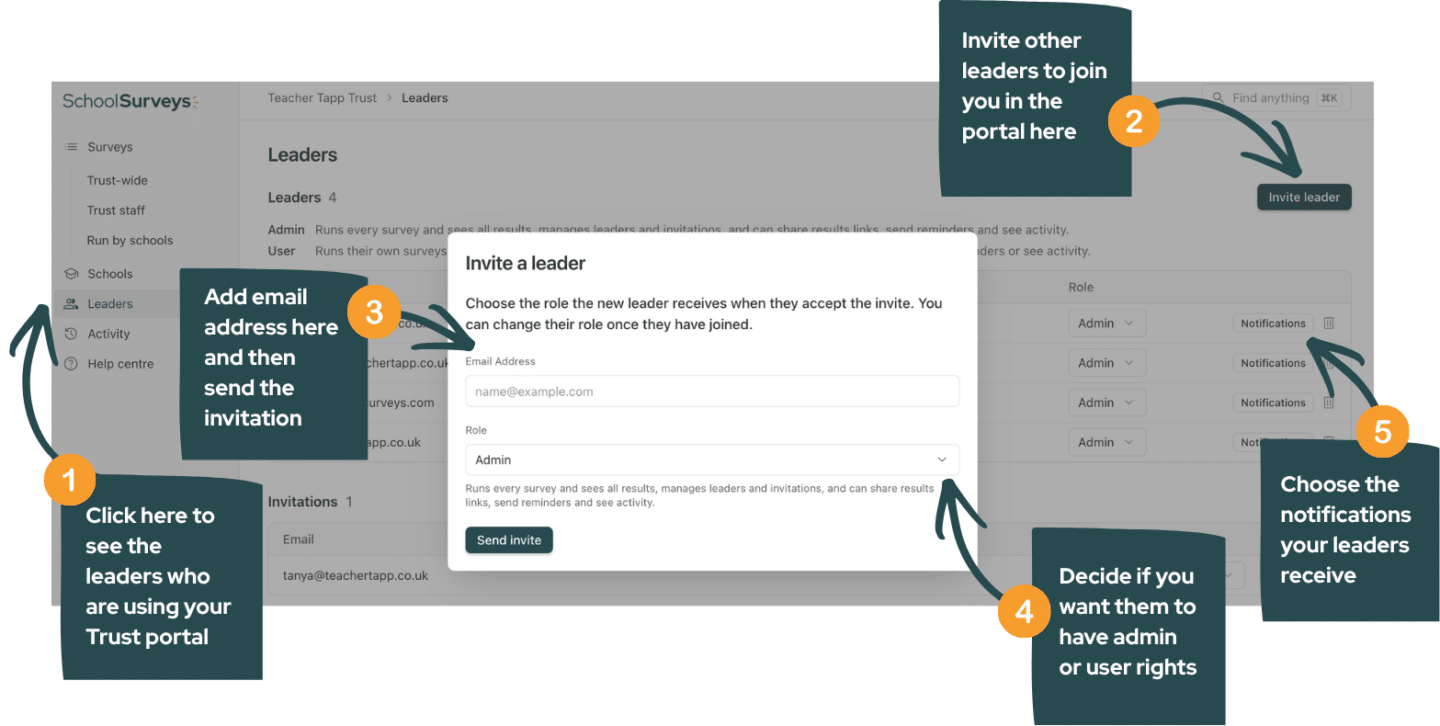
If the email is not received, please ask the staff member to check their spam mailbox. You can also resend an invitation by deleting their email address and re-entering it. If they still don’t receive the email, please check with your school or trust’s IT department as occasionally, internal filters may block the invitation.
Adding leaders for individual schools in the trust
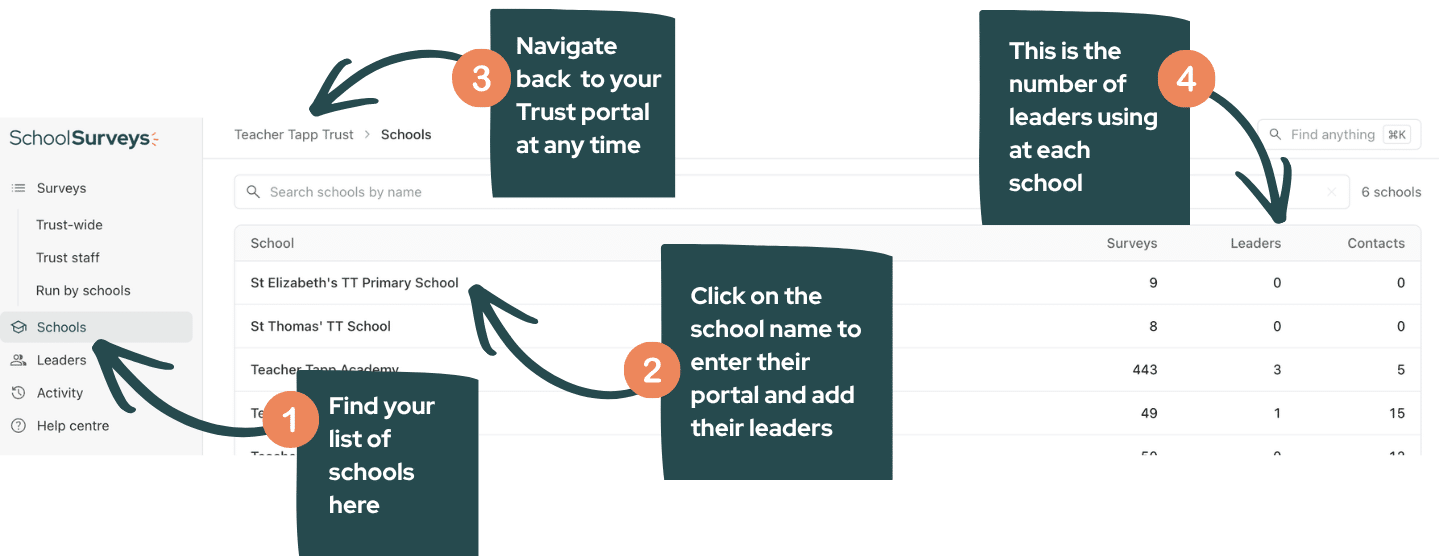
From your Trust portal, navigate to Schools in the left bar. From here, you can enter each school’s portal individually, navigate to Leaders in their left bar and add leaders to that individual school in that same way as above.
Further support
If you still need help, please get in touch at help@schoolsurveys.com, call us on 0330 043 4469 or book a call for a time that suits you, and our team will be more than happy to help.