View results online
Once your survey has opened, you can start seeing results in real-time, as they come in, within the online results area. The online results area allows you to filter your data and make different comparisons over time. It is also where you can edit results (for example, removing bars from schools with low response rates, or removing individual free text comments that are not suitable for sharing).
Step 1. Find the survey
First, log in to your School Surveys account through the portal.
Here you will see all the surveys your team has created. Find the survey for which you wish to review results. It can still be open (results appear in real time), or can be one of your closed surveys.

Step 2. Open the online results
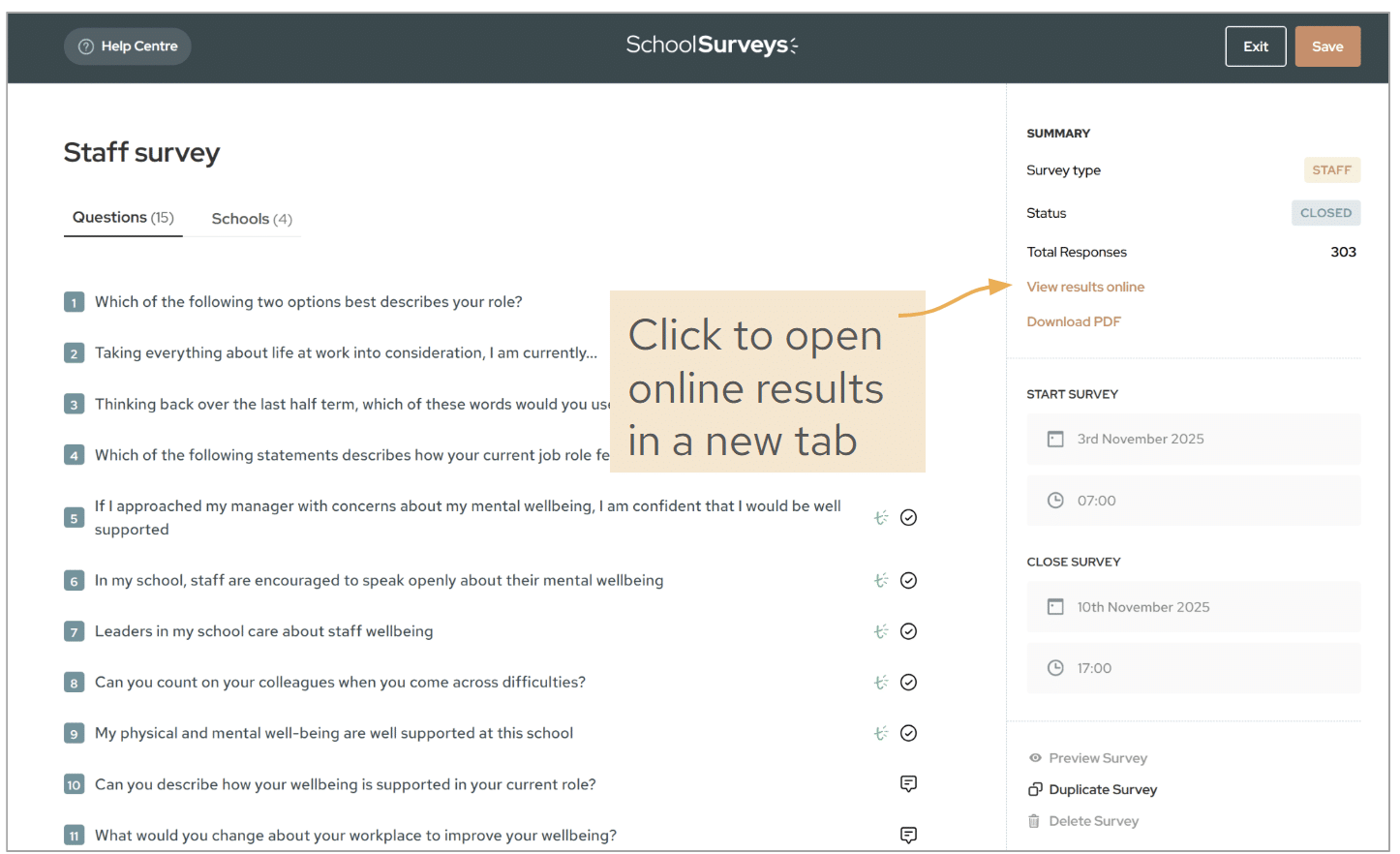
Click on the survey for which you would like to view the results. On the right hand side of the page, you will see a button which says View results online. This sits just above the other ones offering Download PDF and Download CSV.
Click on the view results online button and your survey results will open in a new tab.
Please note: if your survey had 0 participants, there will be no report or csv file available to download!
Step 3. Review and filter your results
The online results will open in a new tab with a summary of responses. You can add the expected participants number here if you wish to see an automatic calculation of your survey response rate (as a %).
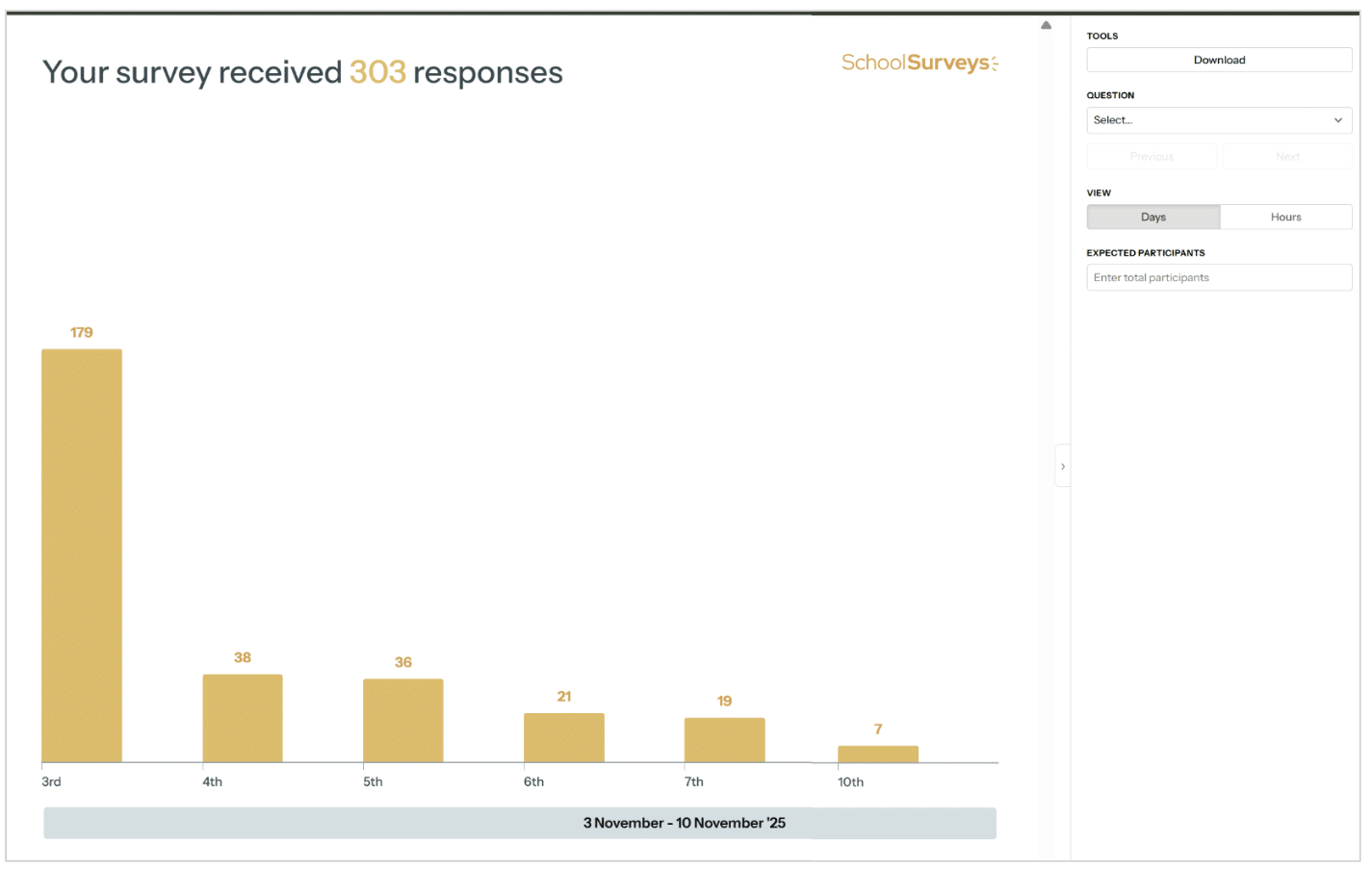
From here, go to the drop down on the right to select the question that you would like to review results for. You can click ‘next’ to keep going through the pages as they appear in the PDF.
You can also do more analysis in different ways. You can:
- Filter data, for example according to role or year group. You can filter by any other question you have asked, not just the demographic ones. Once you have a set a filter (e.g. Middle Leaders), you can click through the whole survey with this filter applied if you wish to.
- Choose different comparison dates. Select the comparison you wish to make from the drop down on the right. You can choose from any previous date when you have asked the same question before.
- See different roles or year groups ‘side by side’
- Remove individual school or year group results from a graph (click ‘x’ on a bar to remove it)
- Remove individual comments from open response questions (go to the ‘Responses’ tab and click ‘x’ on any comment to remove it)
- Create word clouds from open response questions (go to the ‘Word cloud’ tab)
- Anonymise results (e.g. when a Trust wants to show ‘School A, School B etc instead of names)
If you would appreciate help with any of these steps, please email or set up a call. If you have other requests for features, please let us know so we can consider adding them for you if possible.
Step 4. Share results
You may wish to share data from the online results area. You can download individual pages for printing or saving. Use the ‘Download’ button on the top right.
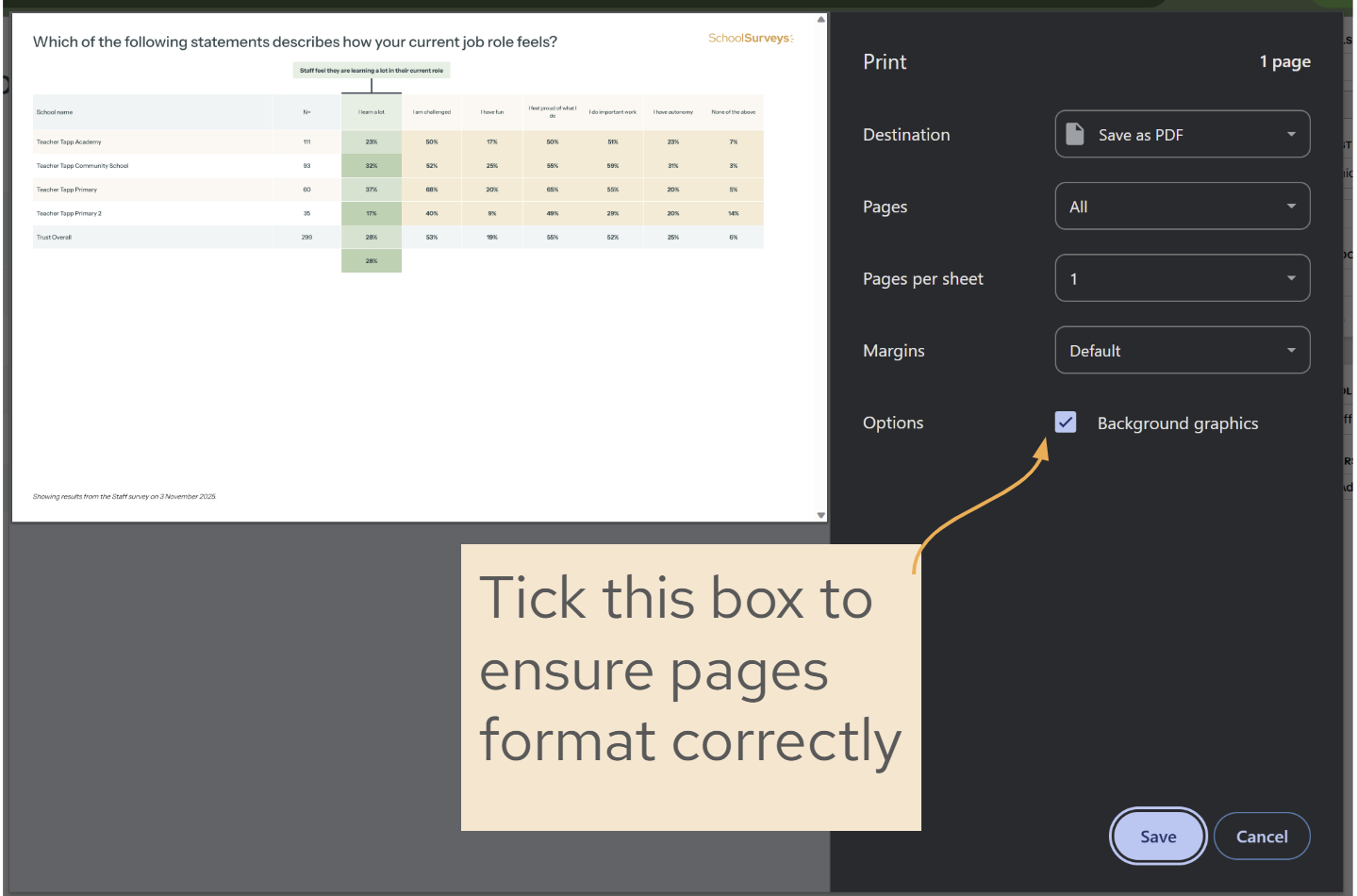
If you have any difficulties with how the pages appear, you may need to go to your printer settings. Follow these steps:
- Click on ‘Download’
- In the print dialogue, you are looking to select ‘Background graphics’
- You may need to open ‘more settings’ or ‘more options’ if it isn’t immediately obvious
If you still need help, please get in touch at help@schoolsurveys.com or call us on 0330 043 4469 and our team will be more than happy to help.